See what a job has cost and what the client has paid
You take on a job and spend money on it. You bill the client in parts. When the client can, they pay. A Project in CatatKoin puts the job's planned spending, its recorded costs, and its client charges and payments on one page. Every figure comes from records you already keep, so there is nothing to add up twice.
Start tracking a projectUpgrade to Pro. Then give your next job its planned spending and dates.
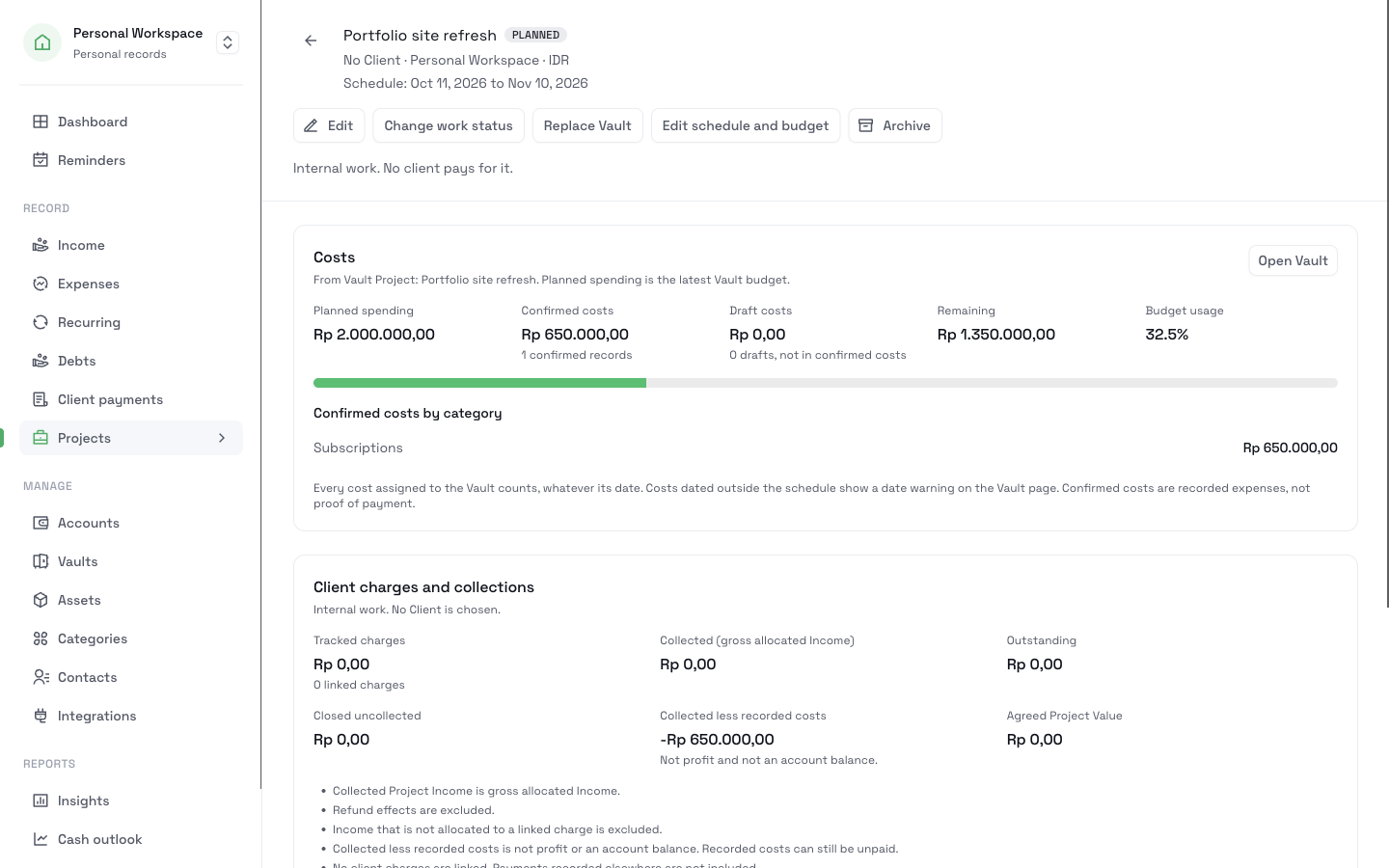
One job, many places to look
When you run work for clients, a single job leaves a trail in several places. Material receipts sit in your expenses. The bills you sent sit in a spreadsheet. Payments arrive in your bank account, and one transfer can cover two jobs.
Later, you want simple answers. How much have I spent on this job? How much has this client paid for it? How much do they still owe? Finding those answers means matching receipts, bills, and transfers by hand.
The names, amounts, and dates are illustrative. This is not a customer story.
A fit-out studio runs two jobs for one client
You run a small interior studio. Kopi Lereng Group hires you for two jobs:
| Project | Agreed value | Planned spending |
|---|---|---|
| Bintaro cafe fit-out | Rp45.000.000 | Rp30.000.000 |
| Menu boards for three outlets | Not agreed yet | Rp4.000.000 |
For the fit-out you bill a Rp6.000.000 design fee and a Rp15.000.000 first milestone. For the menu boards you bill Rp7.000.000. The client sends one transfer of Rp8.000.000 for both jobs.
From a new job to a clear picture
- 1
Set up the Project with its planned spending
Open Projects and click New Project. Enter the name, the Client, and a work reference such as KL-2026-01. If you know the agreed value, enter it. If you do not, leave it empty. CatatKoin then shows it as Unknown, not as zero.
Choose Create a new Vault and enter the Planned spending and the start and end dates. The Vault holds the job's costs. You can also link a time-bound Vault you already use.
- 2
Record costs as you spend
Assign each expense for the job to the Project's Vault. Confirmed expenses count as recorded costs. Drafts show separately until you confirm them. A cost dated after the end date still counts, and the Vault page shows a date warning for it.
- 3
Link the client charges
Record each charge in Client payments, then click Link charge on the Project. Only charges for the same Client, Workspace, and currency can be linked. When a payment arrives, record it once and split it across the charges it pays. For the Rp8.000.000 transfer, allocate Rp5.000.000 to the fit-out milestone and Rp3.000.000 to the menu boards. Each Project counts only its own part.
- 4
Read the figures
The design fee is settled for Rp4.000.000, and you close the remaining Rp2.000.000. After Rp18.750.000 of confirmed costs, the fit-out page shows:
Figure Bintaro cafe fit-out Planned spending Rp30.000.000 Confirmed costs Rp18.750.000 Draft costs Rp1.500.000 Tracked charges Rp21.000.000 Collected Rp9.000.000 Outstanding Rp10.000.000 Closed uncollected Rp2.000.000 Collected less recorded costs -Rp9.750.000 Collected less recorded costs is the amount collected minus confirmed costs. It is not a bank balance, and it leaves out costs you did not record. Recorded costs can still be unpaid, and the client can still pay what is outstanding.
The page also notes that tracked charges are Rp24.000.000 less than the agreed value. That is a reminder, not a correction. Neither amount changes by itself.
- 5
Correct, close, and review
If you linked a charge to the wrong job, use Unlink or reassign. The dialog shows the figures of both Projects before and after the move. The reason you enter stays in the attribution history of both Projects.
Set the work status as the job moves: Planned, In progress, On hold, Delivered, or Cancelled. A status describes the work, not the money. A Delivered job can still have money outstanding. When a job is over, archive it to keep the list short. You can restore it at any time.
Keep every job's numbers honest
Figures come from your records
Costs come from the Vault. Collections come from the payments you allocated to linked charges. Change a record and the Project follows.
One payment, several jobs
A transfer that covers two jobs counts once, split by the amounts you allocated.
Unknown stays Unknown
An agreed value you have not entered stays empty. It never turns into zero.
Totals across jobs
The Projects list shows totals per currency for every matching Project, not only the current page. Export them to a private CSV file.
Questions before you start
Related pages
Projects
Give each client job a page with its planned spending, recorded costs, client charges, and collected payments. Split one payment across jobs.
Read moreVaults
Set a spending limit for groceries, a trip, or a client job. See what is spent and what is left, with monthly, quarterly, or yearly resets.
Read moreClient payments
Record what each client agreed to pay, apply each payment you receive, and see what is still outstanding. Track payments in parts, without a bank connection.
Read moreExpense tracking
Log expenses in seconds from the web, Telegram, or the API. Sort them into categories and vaults, review drafts, and export a CSV. No bank login needed.
Read moreTrack what clients owe
Add client charges, record each payment you receive, and see what is still outstanding. Close unpaid balances and export a CSV in CatatKoin.
Read moreGive your next job its own page
Set up a Project with its planned spending and dates, assign its costs, and link its charges. When the client pays, the job's page shows what came in and what is still owed.
Start tracking a project