See what a job cost and what the client paid
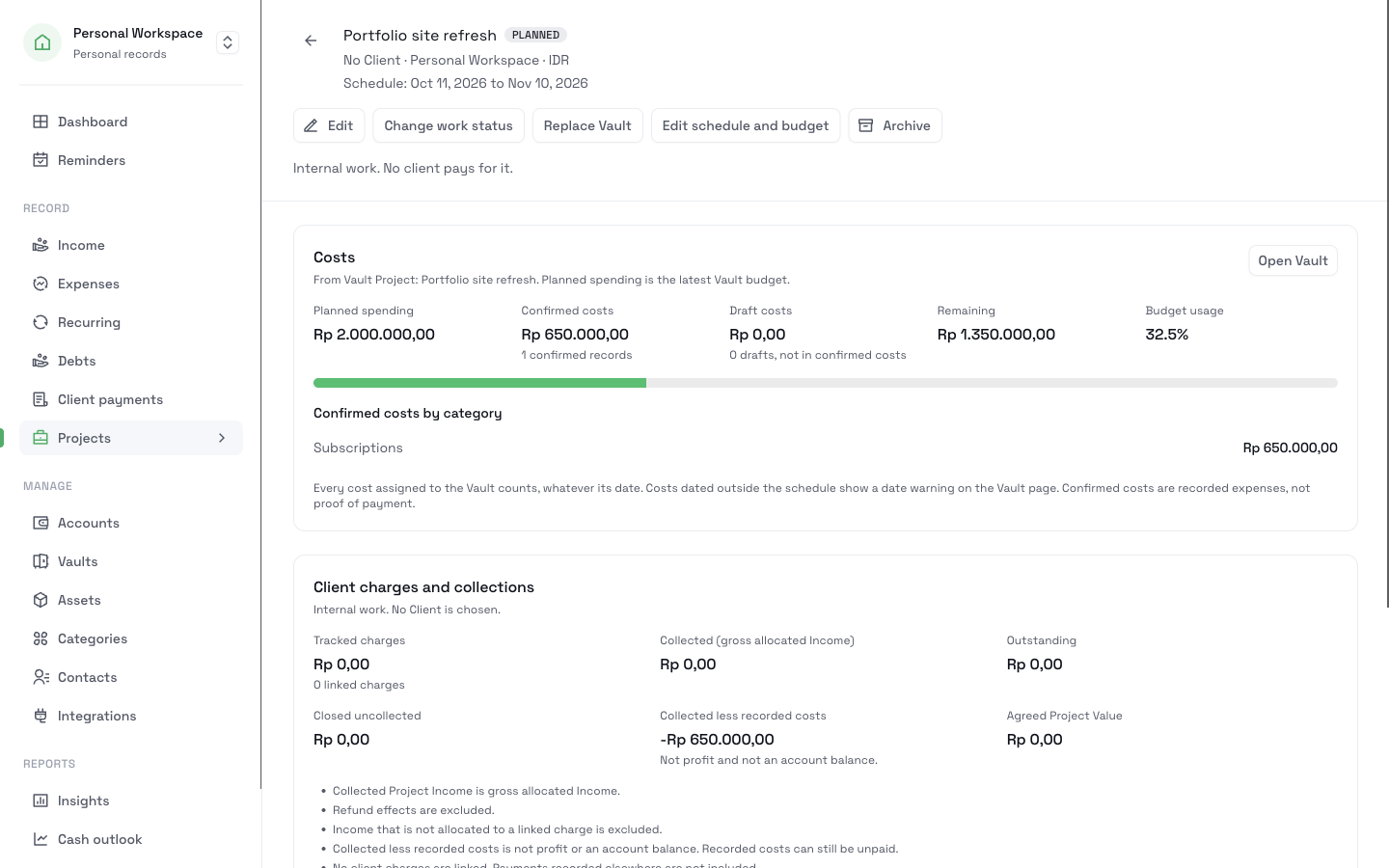
A Project gives each client job its own page. The page shows the planned spending, the recorded costs, the client charges, and the payments collected for that job. Every figure comes from records that you already keep.
Start tracking a projectUpgrade to Pro. Then give your next job a vault and dates.
What it does
Costs and collections on one page
Costs come from the job's vault. Collections come from the payments that you applied to the job's client charges.
One payment across two jobs
A client can send one transfer for two jobs. Each Project counts only the part that you allocated to it.
Unknown stays Unknown
An agreed value that you did not enter shows as Unknown, not as zero.
Totals across jobs
The Projects list shows totals per currency for every matching Project. You can export them to a private CSV file.
How it works
- 1
Open Projects and click New Project. Enter the name and the client. If you know the agreed value, enter it too.
- 2
Choose Create a new Vault and enter the planned spending and the dates. You can also link a time-bound vault that you already use.
- 3
Assign each expense for the job to its vault. Confirmed expenses count as recorded costs. Drafts show separately until you confirm them.
- 4
Record each charge in Client payments, then click Link charge on the Project.
- 5
Set the work status as the job moves: Planned, In progress, On hold, Delivered, or Cancelled. Archive the Project after the job ends.
What it does not do
- "Collected less recorded costs" is not what you earned. It subtracts confirmed costs from collected payments, and it leaves out unpaid bills, taxes, and your time.
- A Project does not create invoices or send reminders. Charges and their reminders stay in Client payments.
- It does not track your hours.
- It does not convert currencies. A Project uses the currency of its vault.
Related pages
Track project costs and collections
Give each client job a page with its vault, recorded costs, charges, and collected payments. Split one payment across jobs and export a private CSV.
Read moreVaults
Set a spending limit for groceries, a trip, or a client job. See what is spent and what is left, with monthly, quarterly, or yearly resets.
Read moreClient payments
Record what each client agreed to pay, apply each payment you receive, and see what is still outstanding. Track payments in parts, without a bank connection.
Read moreGive your next job its own page
Set up a Project with a vault and dates, assign its costs, and link its charges. As the client pays, the page shows what came in and what is still owed.
Start tracking a project