Keep each client payment connected to the right account
A client pays you. Record what arrived, who paid, and where the money went. CatatKoin brings your received income and recorded account balances into one place, without requiring a bank connection.
Start tracking your incomeCreate an account, add your money accounts, and record your first received payment.
A payment notification is only the beginning
When you freelance, money can arrive in different places. One client pays into your bank account. Another uses your e-wallet. Payment details might stay in a chat, while your running total lives in a spreadsheet.
Later, you want to know how much you received this month, which client a payment came from, and which account holds it. Checking several apps means piecing that story together again.
CatatKoin gives each received payment a place in your records: a title, an amount, a received date, and a receiving account. Add the payer or source and a note when you need more context.
The names, amounts, and dates are illustrative. This is not a customer story.
A freelance designer receives a project payment
You use Work bank for client payments and Daily wallet for everyday purchases. On October 1, you start tracking them with these opening balances:
| Money account | Currency | Opening balance |
|---|---|---|
| Work bank | IDR | Rp2.000.000 |
| Daily wallet | IDR | Rp250.000 |
On October 10, Studio Merah pays Rp1.500.000 into Work bank for a completed design job. You check the payment in your bank app and record it in CatatKoin the next day.
You want this payment to appear in your October income and in Work bank's movement history. Daily wallet should keep its own balance.
From a received payment to a useful record
- 1
Start from the account that received the money
Open Accounts, find Work bank, and click Details. Choose Record Income.
The form already shows Work bank · IDR as the receiving account. It stays fixed while you fill in the payment details, so you can focus on the receipt without choosing the account again.
When you are setting up a money account for the first time, give it a name, choose its type and currency, and enter an opening balance and date. Bank accounts, e-wallets, and cash holdings can each have their own record.
- 2
Record what actually arrived
Enter the payment details:
Field Example Title October design work Receiving account Work bank · IDR, already selected Amount Rp1.500.000 Received date October 10, 2026 Payer or source Studio Merah Notes Final payment for the October design work Save the record. Use the date the money arrived, even if you are recording it a day later. The payer or source and notes are optional, but they help you recognize a payment when you return to it.
- 3
See how it changes your records
With no other movements in this example, the payment produces these results:
View Result Work bank recorded balance through October 10 Rp3.500.000 Work bank movement history An Income entry of +Rp1.500.000 dated October 10 Daily wallet recorded balance Rp250.000 Income page, October 1–11, Total · IDR Rp1.500.000 The opening balance gives Work bank its starting amount. Your October income total counts the client payment you recorded during that period.
- 4
Review income and correct details when needed
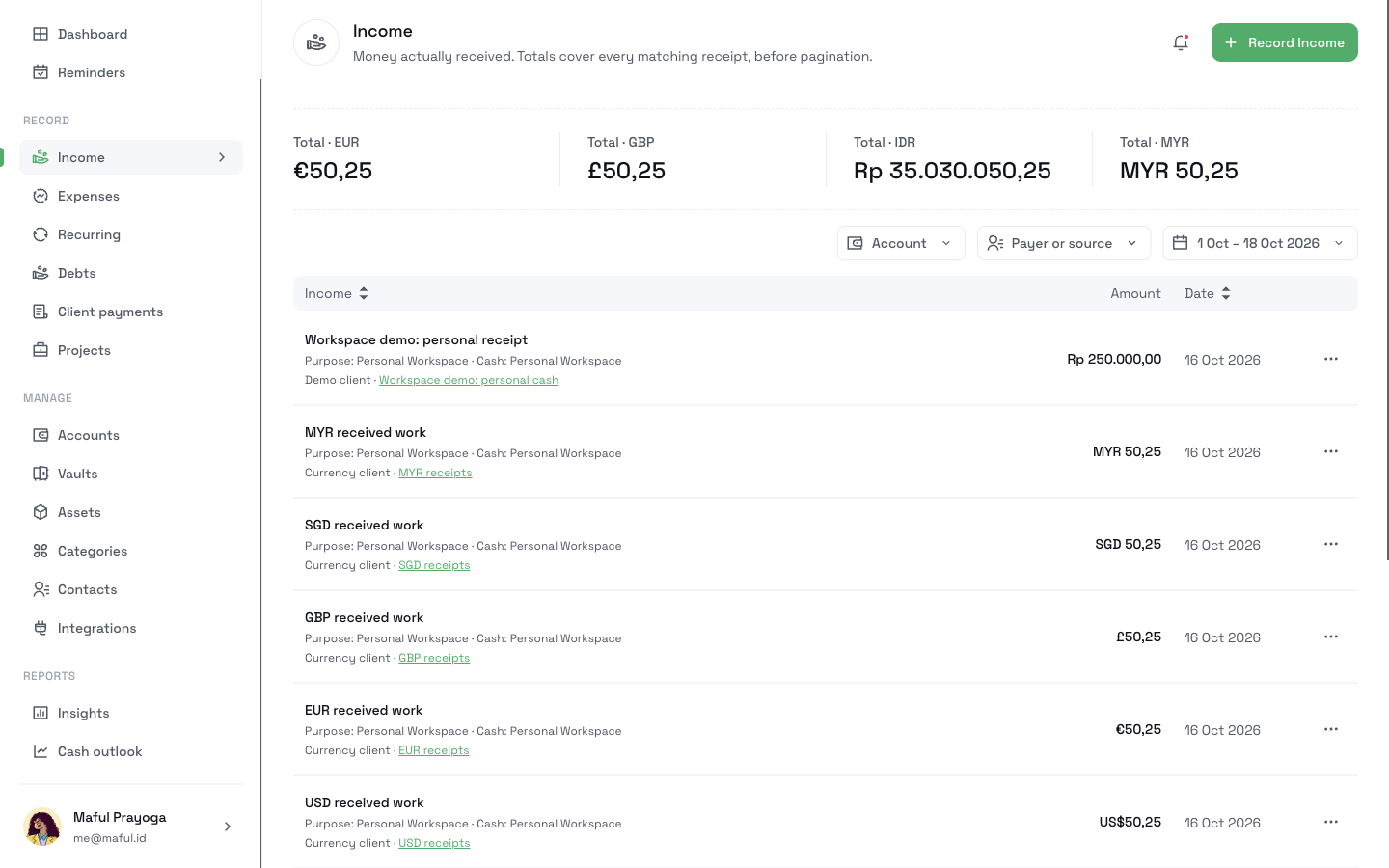
On the Income page, filter by Work bank, a received date range, or the payer or source. Find the title, source, receiving account, amount, and received date in the table. The currency totals cover all matching receipts, including receipts on other pages.
If you misspelled Studio Merah's name, return to Work bank's movement history and choose View source / correct on the payment. Update the payer or source and save. Work bank remains the fixed receiving account in this flow.
You can also correct the amount or received date. Those changes update the recorded balance and any affected income totals, so your views reflect the corrected record.
Keep the payment's context when you come back
Recognize each receipt
A title and payer or source help you tell a client payment from other income, even when several receipts have similar amounts.
See where the money was recorded
Each receipt belongs to a receiving account. Account details show that account's recorded balance and dated movements together.
Review a period without adding rows yourself
Filter received income by dates, account, or source. Totals follow those filters and stay separate by currency.
Correct details from the account you are reviewing
Recording or correcting income from account details keeps that receiving account fixed in the form.
Questions before you start
Related pages
Income
Record each payment you receive with its date, source, and receiving account. Filter by account, source, or dates and see totals for each currency.
Read moreMoney accounts
Record each bank account, e-wallet, and cash wallet with its own balance. Log income and transfers between your accounts without a bank connection.
Read moreBank statement import
Upload a bank statement as a PDF or image, review the rows it finds, and import the ones you want as expenses. No bank login needed. Needs CatatKoin Pro.
Read moreClient payments
Record what each client agreed to pay, apply each payment you receive, and see what is still outstanding. Track payments in parts, without a bank connection.
Read moreTrack what clients owe
Add client charges, record each payment you receive, and see what is still outstanding. Close unpaid balances and export a CSV in CatatKoin.
Read moreGive your next client payment a clear place in your records
Start with the account you use for work. Add its opening balance, then record your next received payment with its date and source. When you return, the receipt, account, and income total are there to review.
Start tracking your income